
Freezing document numbers locks the current numbering of selected documents in place. When new documents are added to the folder, they will be assigned sub-numbers (e.g. 4.1, 4.2) rather than displacing the frozen document numbers.
Freezing document numbers #
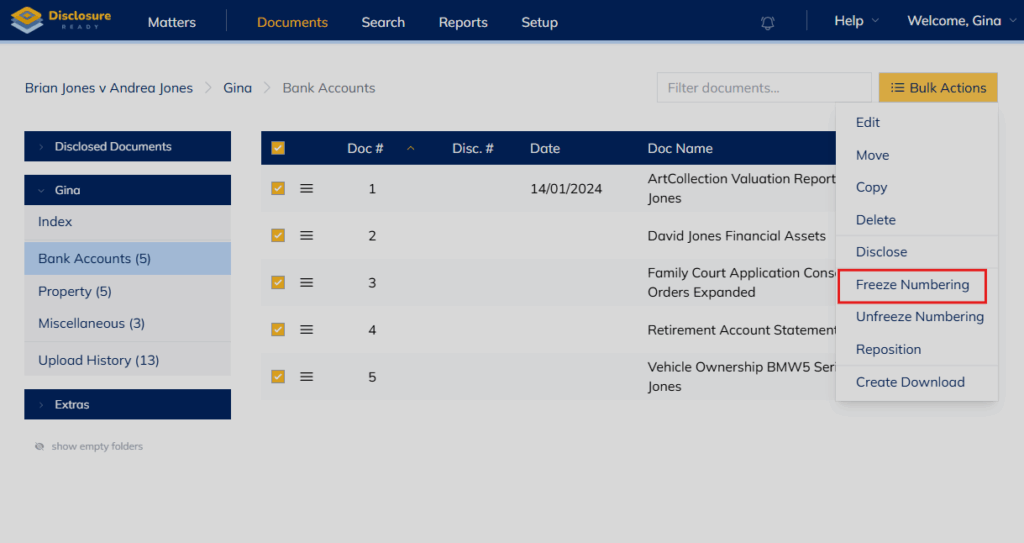
- Open the folder containing the documents you want to freeze
- Select the documents by checking the checkbox next to each one
- Click Bulk Actions and click Freeze Numbering
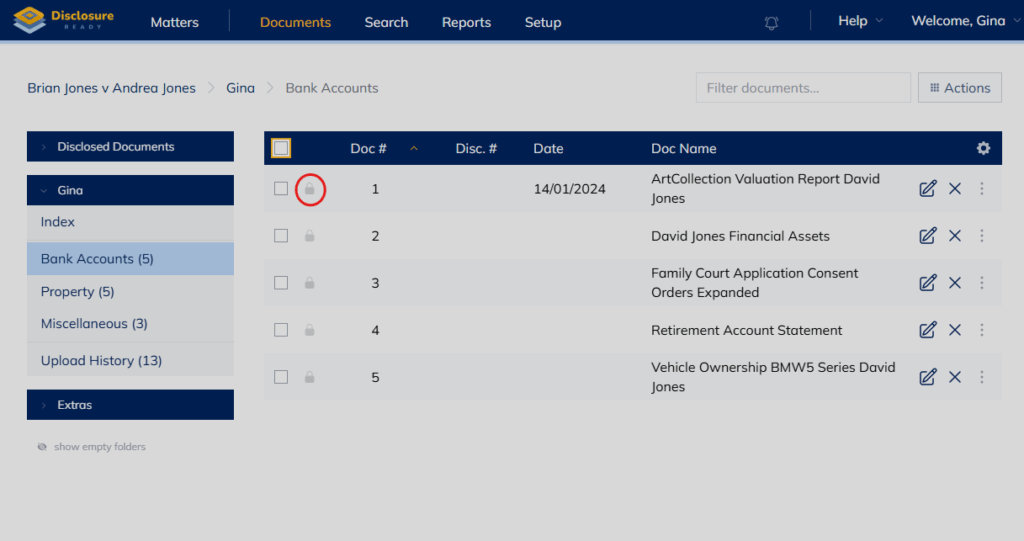
- A padlock icon will appear next to each frozen document
What happens when you add new documents #
New documents added to the folder will be assigned sub-numbers that sit between the frozen numbers (e.g. 4.1, 4.2), keeping the frozen document numbers intact.

Unfreezing document numbers #
To unfreeze, select the documents, click Bulk Actions and click Unfreeze Numbering.
For further information or assistance, please do not hesitate to reach out to our dedicated Support Team via support@legalready.ai or +61 3 9020 4456.