
This article explains how to manage the folder structure within a matter in Disclosure Ready.
Watch the following video or refer to the instructions below.
Accessing folders #
- Open the matter and click the Setup tab
- Click Folders from the left-hand panel
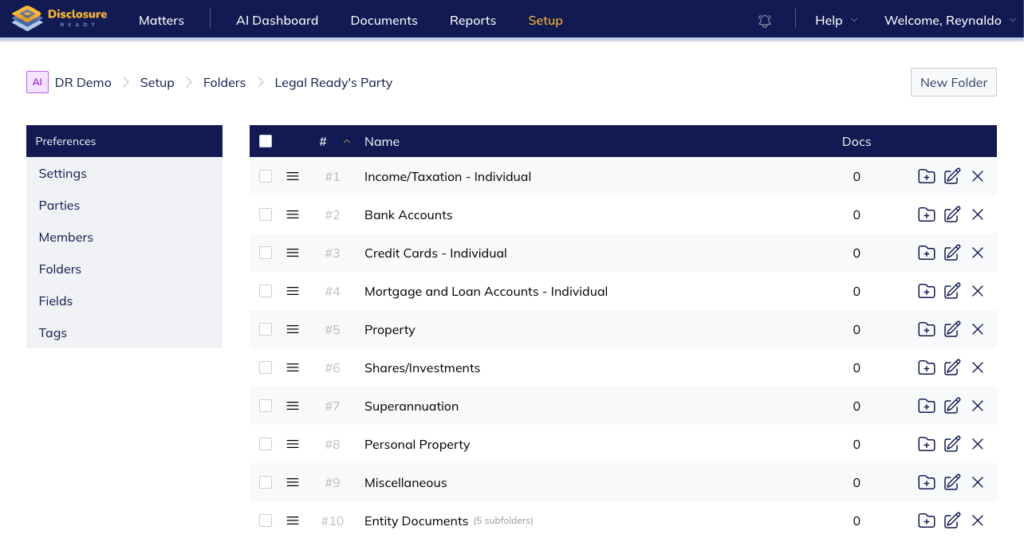
- Click your party’s name to view the default folder list
Reordering folders
Click and hold the three bars to the left of the folder to drag the folder up or down to reorder it.
Editing a folder name
Click Edit Folder on the right-hand side of the folder name.
Adding a new folder
- Click New Folder in the top right corner
- Enter the folder name and click Create
Adding a subfolder
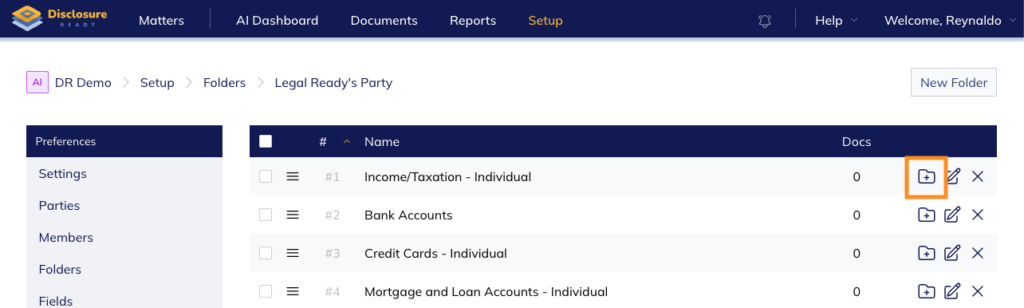
Click the subfolder icon next to the folder name, enter the subfolder name, and click Create.
Cloning a folder structure for another party
If you want to replicate the same folder structure for another party:
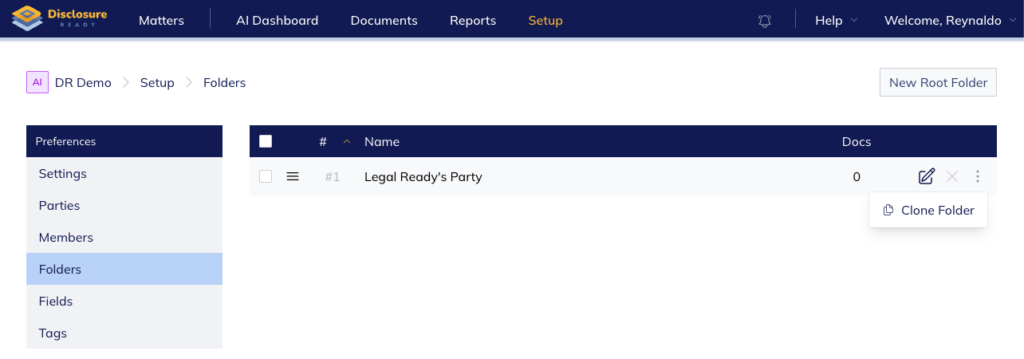
- Click the three dots on the right-hand side of your party’s folder
- Select Clone Folder
- Once cloned, update the folder name with the other party’s name
For further information or assistance, please do not hesitate to reach out to our dedicated Support Team via support@legalready.ai or +61 3 9020 4456.