
Annotations (also known as Tags) allow you to highlight and add notes to specific sections of documents within a matter. You can annotate a single document directly, or compile several documents into a Disclosure Bundle first.
See, How to disclose documents for instructions on how to create a disclosure bundle.
Watch the following video or refer to the instructions below:
Making annotations #
Option 1 — Annotate directly on a document
- Click into your matter and open the document you want to annotate
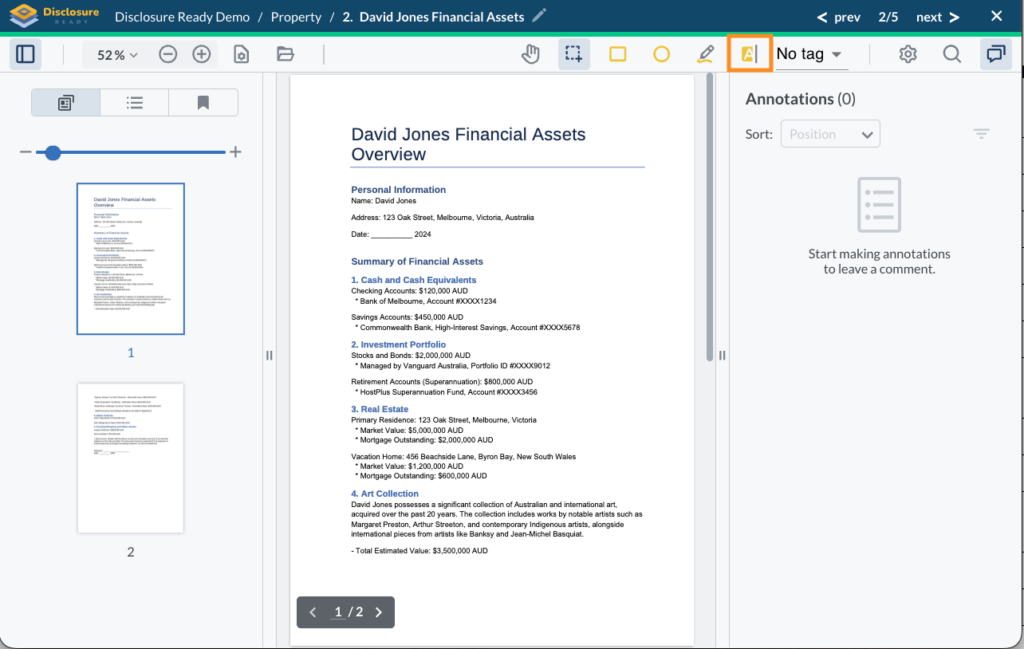
- Click the A button in the top menu to activate the annotation tool
- Click and drag to highlight the section you want to annotate
- Add any tags, comments or dates on the right hand side
- (Optional) Tick Private, to make the annotation visible only to yourself (see Making an annotation private section below for further information)
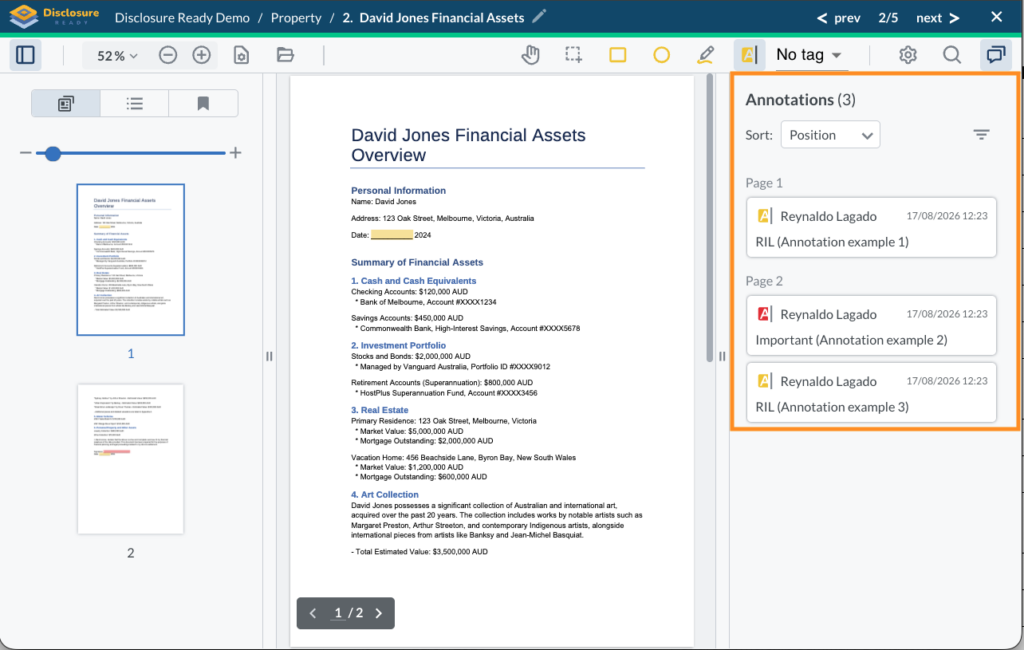
Note: To view all your annotations, click the Annotations button on the right hand side of the screen. This opens a panel listing all annotations for easy navigation.
Option 2 — Annotate using a Disclosure Bundle
If you need to annotate multiple documents at once, create a bundle first to compile them in one place.
- Create your Disclosure Bundle
- Once completed, click on the document within the disclosure bundle that you wish to annotate
- Use the A button in the top menu to annotate as above
Making an annotation private #
When creating or editing an annotation, you will see a Private checkbox in the annotation panel on the right hand side.
- Unticked — the annotation is visible to all members of the matter who have access to that document
- Ticked — the annotation is private and visible only to you
Note: Annotations in a Multiparty matter are private and accessible only to the party that created them. They are never shared between opposing parties.
Deleting annotations #
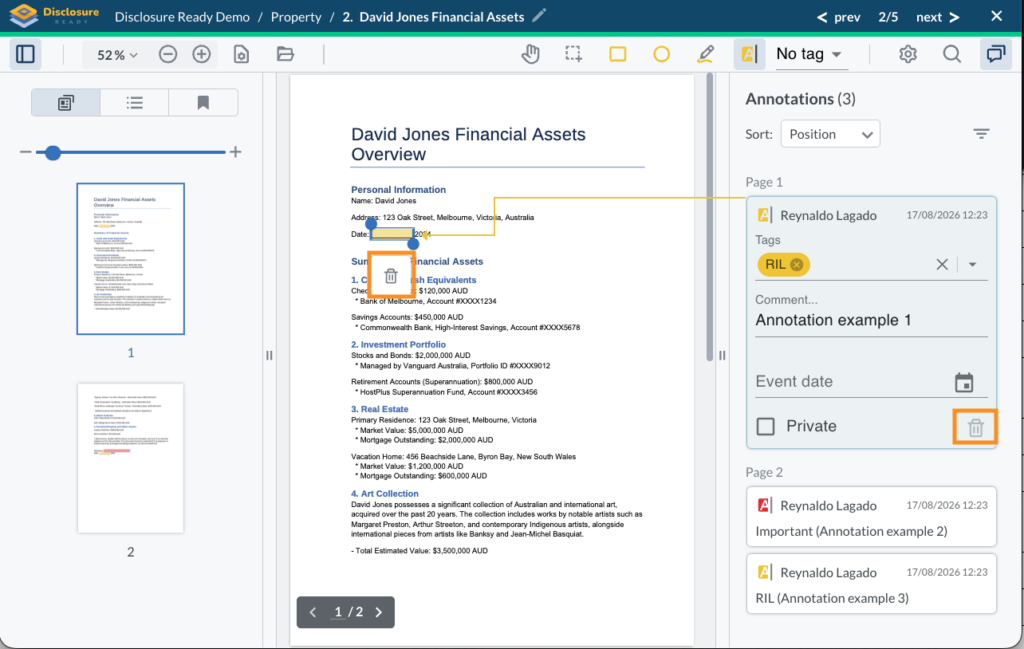
You can easily delete annotations from a document by clicking the annotation directly on the page or within the Annotations panel, then clicking the Recycling Bin icon.
Automatic syncing #
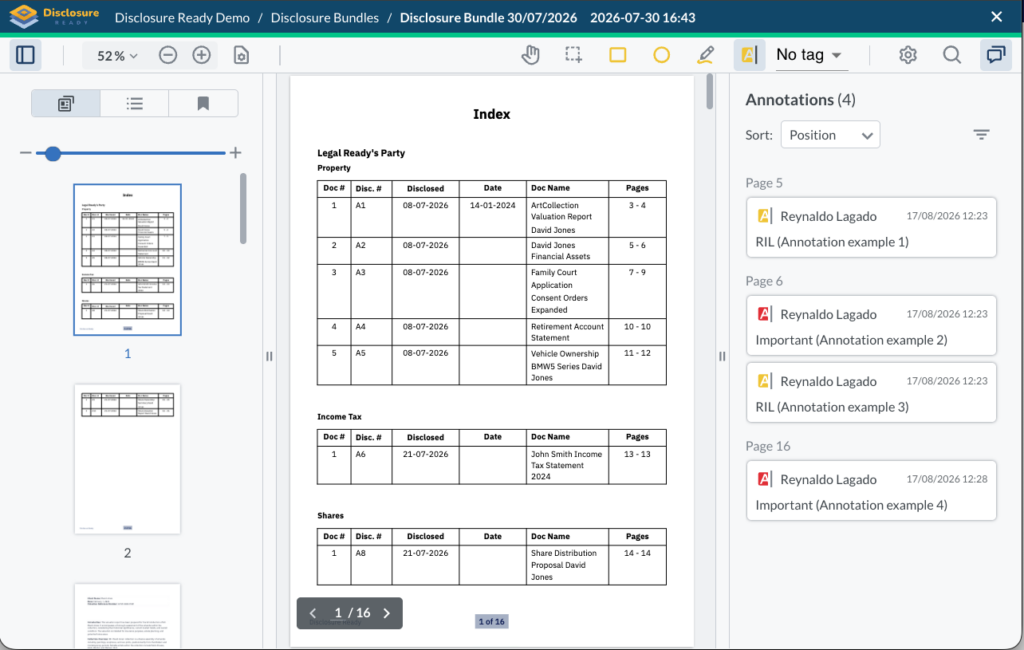
One of the benefits of annotating in Disclosure Ready is that all your annotations will automatically sync into any bundle that contains that document. You do not need to do anything — the syncing happens in the background.
When an annotation syncs into a bundle, the page number updates to reflect the bundle pagination rather than the original document page number. For example, an annotation made on page one of a document may appear on page six of the bundle, and will be referenced as page six to the court.
For further information or assistance, please do not hesitate to reach out to our dedicated Support Team via support@legalready.ai or +61 3 9020 4456.