
If the handlebar icons for manually reordering documents are not visible in a folder, it is because sorting is currently controlled by a date or other automatic sort setting. There are four possible causes.
Matter is set up to sort documents by date #
If the matter-level document sorting is set to Field: Date, manual sorting via handlebars will not be available.
To check and change this:
- Click the edit pencil on the right-hand side of the matter in the Matters list
- Under Document sorting, check the Default sort by attribute setting
- If it is set to Date, change it to Manual / User-defined and save

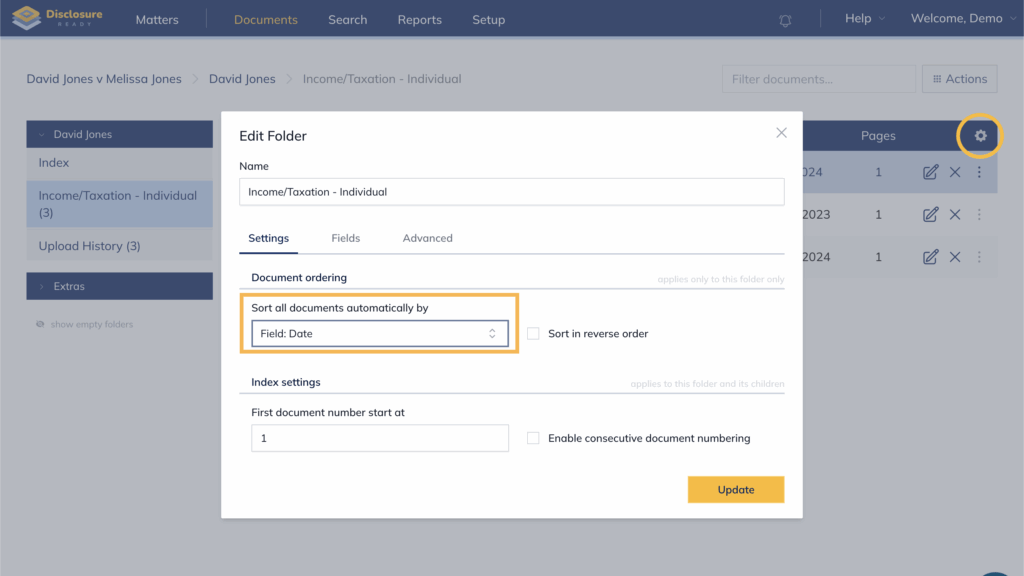
Folder is set up to sort documents by date #
An individual folder may have its own sorting override set to Field: Date.
To check and change this:
- Open the folder and click the Cog icon on the right-hand side
- In the Edit Folder panel, check the Document ordering setting under the Settings tab
- If it is set to Field: Date, change it to Manual / User-defined and click Update
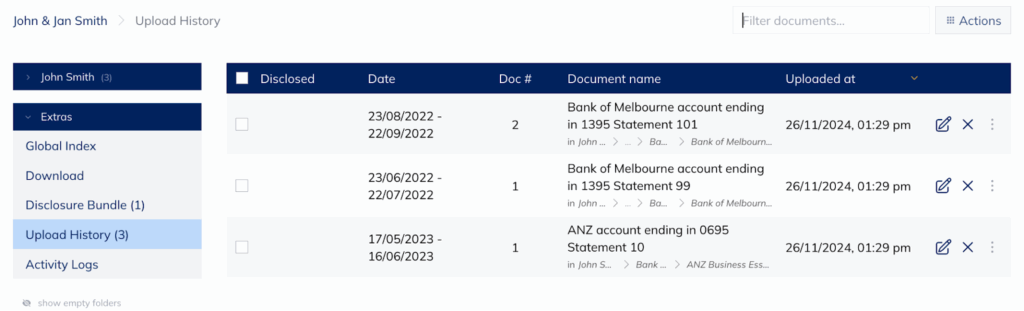
Upload History does not allow manual sorting #
The Upload History folder is a system folder and does not support manual sorting via handlebars. This is expected behaviour.
Freeze numbering is activated on the document #
If a document has freeze numbering enabled, it will show a lock icon next to the document reference and manual reordering will be restricted.
To remove this:
- Click the edit pencil on the document
- Go to the Advanced tab
- Under Freeze numbering, select None and click Update

For further information or assistance, please do not hesitate to reach out to our dedicated Support Team via support@legalready.ai or +61 3 9020 4456.