
#
You can create a chronology from the documents within your matter using AI matter intelligence. The chronology extracts key events and dates from your documents and compiles them into a structured timeline.
How to create a chronology
- Open your matter and click the AI Dashboard tab in the top navigation menu
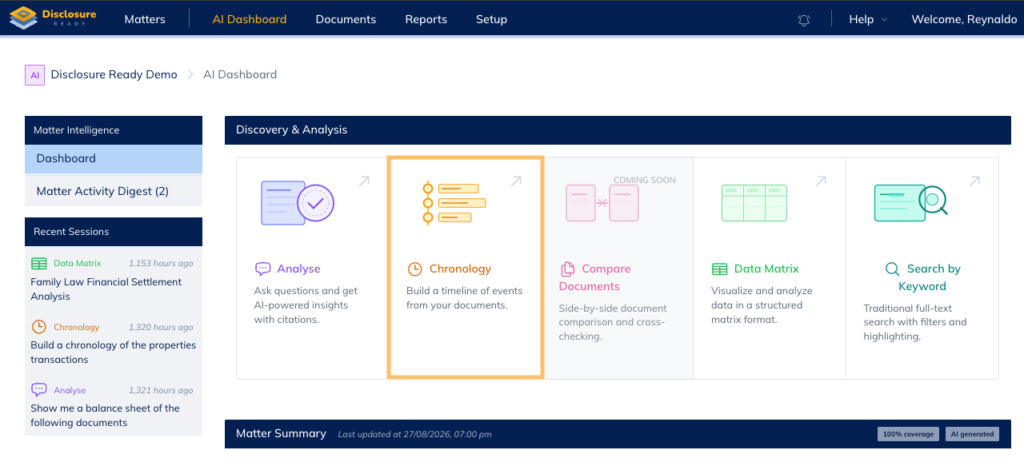
- On the Dashboard, click Chronology from the Discovery & Analysis section
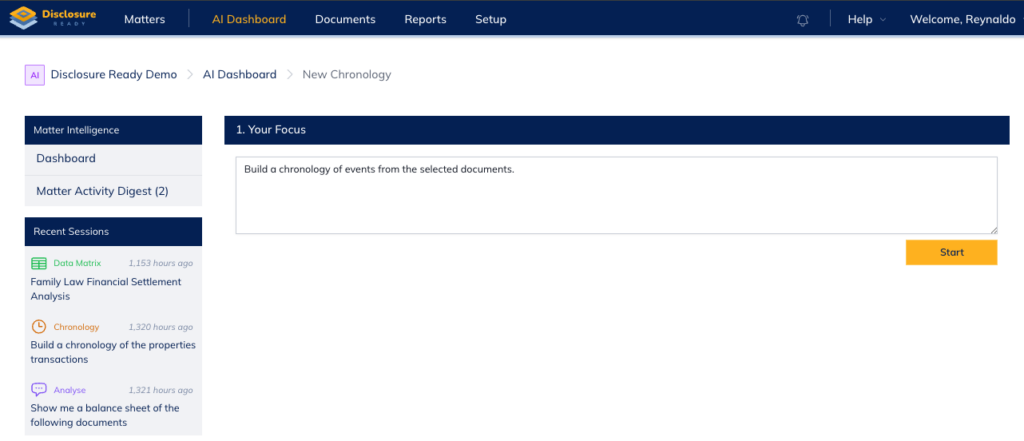
- Under Your Focus, enter your prompt or question (eg Build a chronology of events from the selected documents)
- Click Start
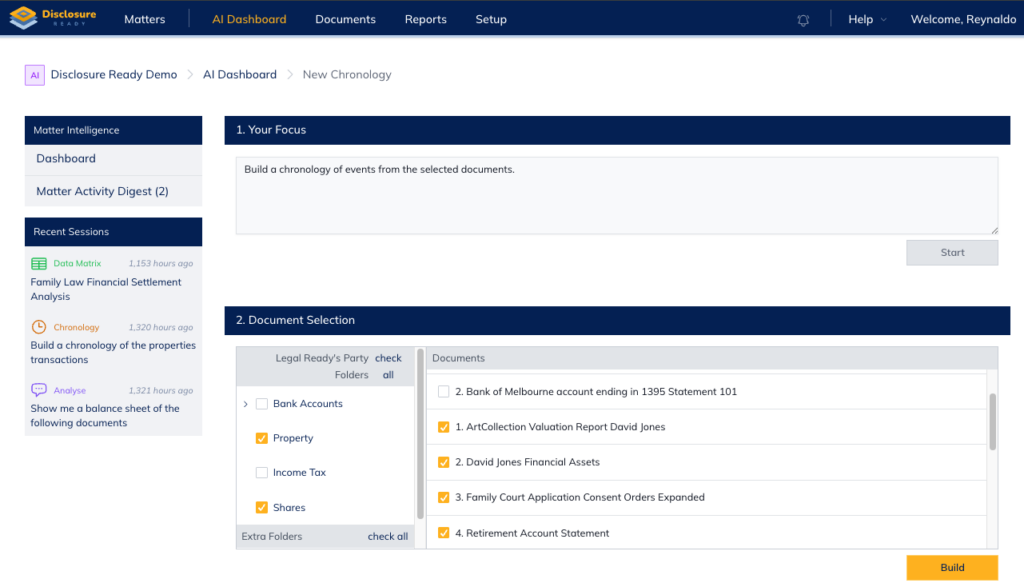
- Under Document Selection, select the folders and individual documents you want to include
Note: You can tick folders on the left to select all documents within them, or select individual documents on the right. - Click Build
Viewing your results
Once the documents have been processed, the chronology will be displayed under a Chronology section showing a table of dates and corresponding events. The results are also saved automatically in the Recent Sessions section on the left hand side.
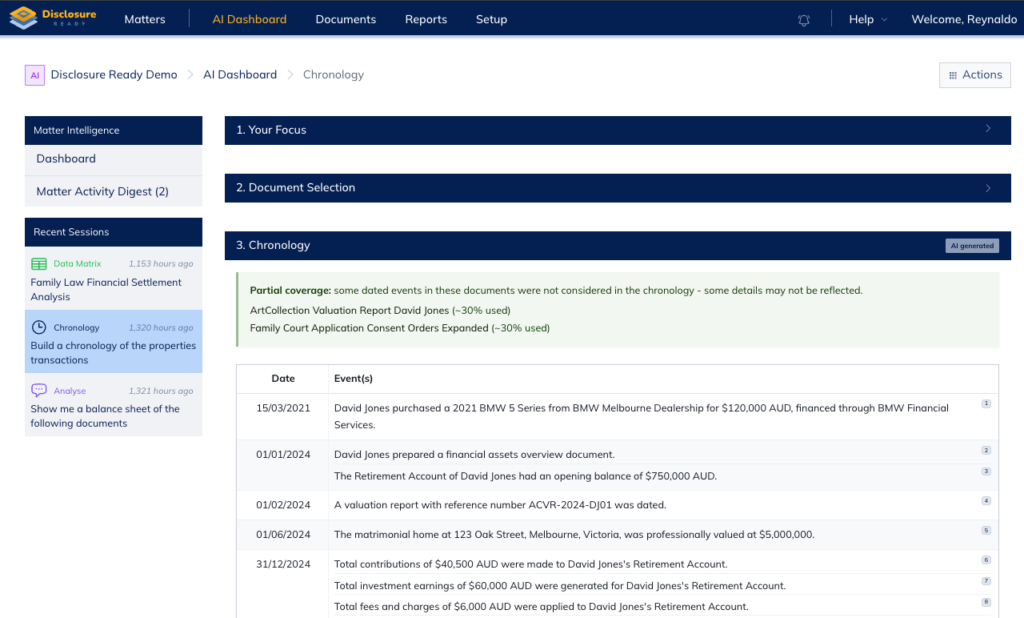
Note: If the documents are being processed for the first time, the system will take slightly longer to produce a response.
Exporting your chronology
To export the results for offline use:
- Click Actions in the top right corner
- Click either Export CSV or Export DOCX as your export format
For further information or assistance, please do not hesitate to reach out to our dedicated Support Team via support@legalready.ai or +61 3 9020 4456.