
One of the key features available with Disclosure Ready is the ability to create a bundle with just the disclosed documents. This prevents users from accidentally sharing private files, and keeps a clear record of has been sent.
Creating a Disclosed Document only bundle
- Open your matter and click the Actions button
- Click Create Disclosure Bundle
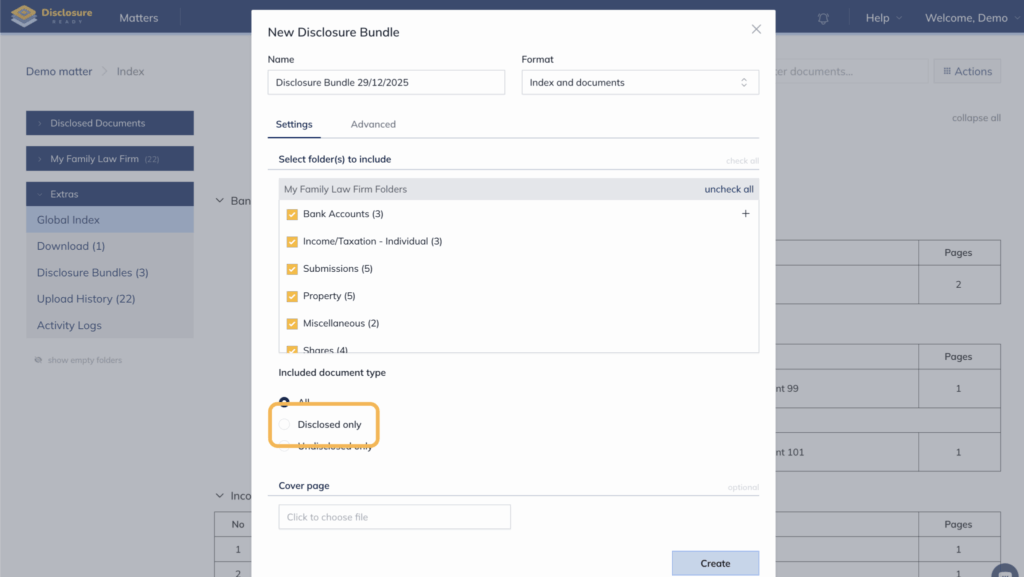
- Enter a Name for your bundle and select the Format
- Under Select the Folder(s) to include, uncheck any folders that are not to be include
- Under Include document type, select Disclosed only
- (Optional) Specify a date range
- Click Create
Viewing your Disclosure Bundle
You will receive an email confirmation once the bundle has been created.
To access: Go to Documents → Extras → Disclosure Bundle.
For further information or assistance, please do not hesitate to reach out to our dedicated Support Team via support@legalready.ai or +61 3 9020 4456.