
The columns in your index are called “document fields” in Disclosure Ready. Document fields allow you to add greater detail to documents within a matter and can be customised to meet your firm’s specific requirements.
This article explains how to create new fields, add them to folders, and update field contents.
Note: Document fields will be included when creating matter templates.
Creating new fields #
- Go to your matter and click Setup at the top banner
- Select Fields from the left-hand panel
- Click New Field in the top right corner

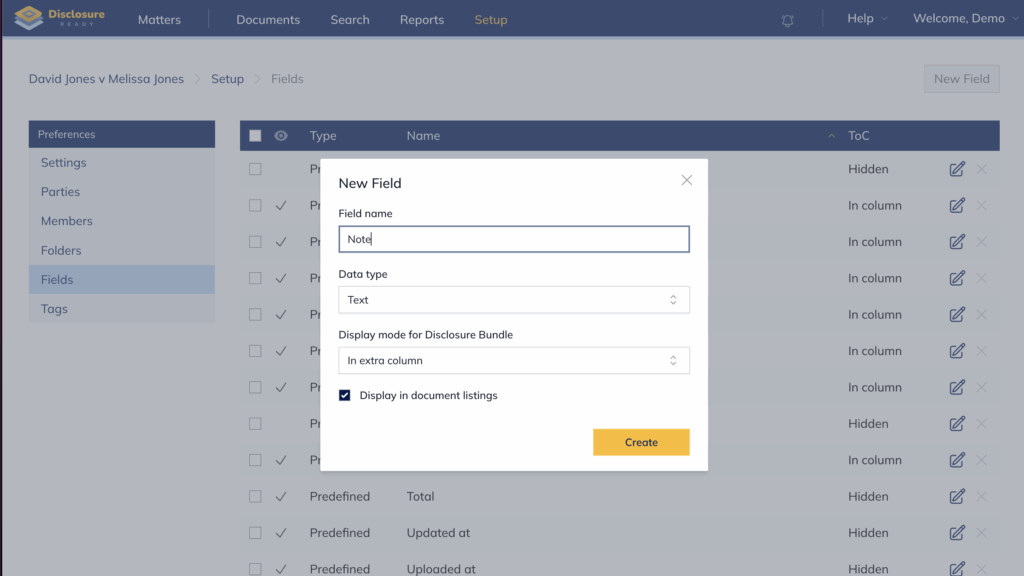
- Enter the following details for your new field:
- Field name
- Data type, which can be:
- Text: single line of text (e.g. Note, Comment, Sender)
- Boolean: True or False (e.g. Reviewed, Approved)
- Integer number: whole number (e.g. Internal #)
- Decimal number: number with decimal, like monetary amounts (e.g. Purchase Price, Account Balance)
- Date-only: date format (e.g. Served date, Sent date)
- Optionally configure:
- Display mode: select whether to display in column or row — column is recommended as the default
- Display in document listings: enable this to show the field as a column in the folder list and index
Note: If unchecked, the field will only appear in the detailed document view.
- Click Create
Adding fields to folders #
Once a field is created, it must be added to each folder where you want it to appear.
- Go to your matter and select Setup from the top banner
- Select Folders from the left-hand panel
- Click the relevant party to view the current folders
- Click the edit pencil on the right-hand side of the folder name
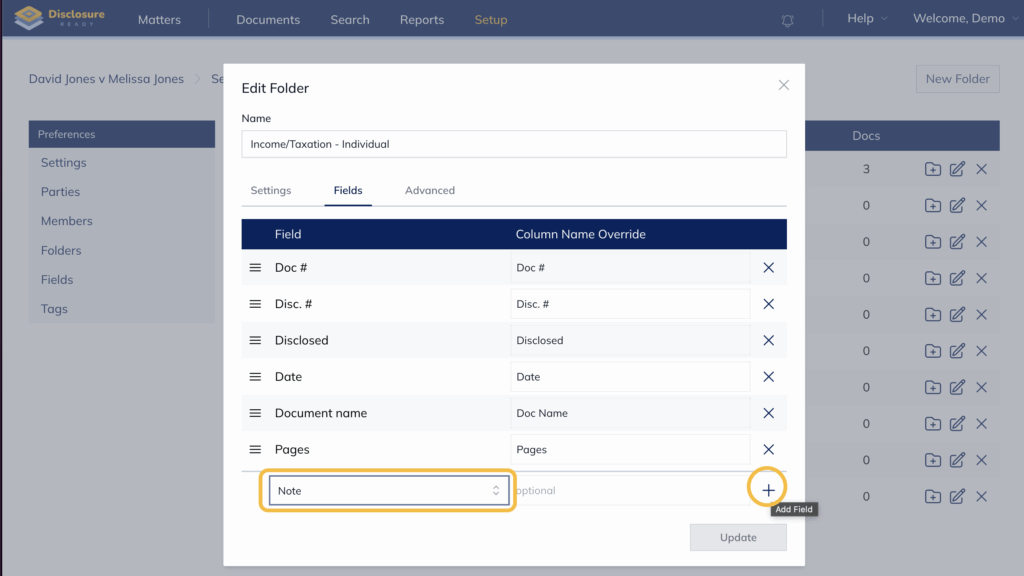
- Click the Fields tab in the Edit Folder window
- Select the new field from the Select field to add… dropdown and click the + icon to add it
- (Optional) Drag and drop fields into your preferred order using the three bars on the left-hand side of the field name
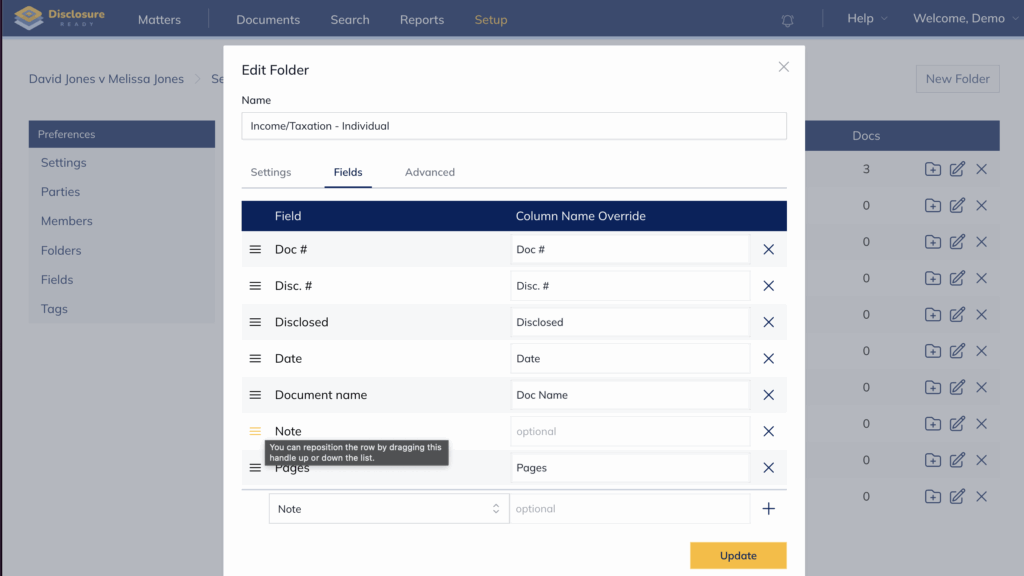
- Click Update
Updating document fields #
Once fields have been added to a folder, you can update the field values for individual documents:
- Go to your matter and select the folder containing the documents you want to update
- Click the edit pencil on the right-hand side of the document name.
- In the Edit Document window, click the Fields tab
- Under Additional fields, update the value of your field

- Click Update
The new field value will appear as a column in the document list at the folder level and at the index level.


Note: If the new field does not appear as a column, check that Display in document listings is enabled in the field settings.
For further information or assistance, please do not hesitate to reach out to our dedicated Support Team via support@legalready.ai or +61 3 9020 4456.