
You can update the document date from either the matter view or the document viewer.
From the matter view #
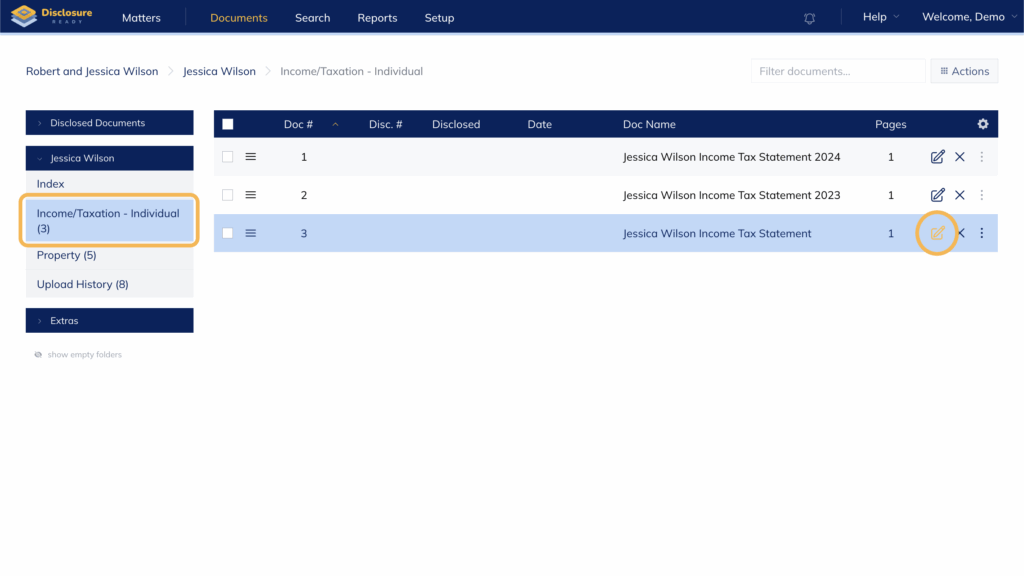
- Go to your matter and select the folder where the document is located
- Click the edit pencil on the right-hand side of the document name
- In the Edit Document panel, click the Fields tab
- Under Document date, select the date using the date picker
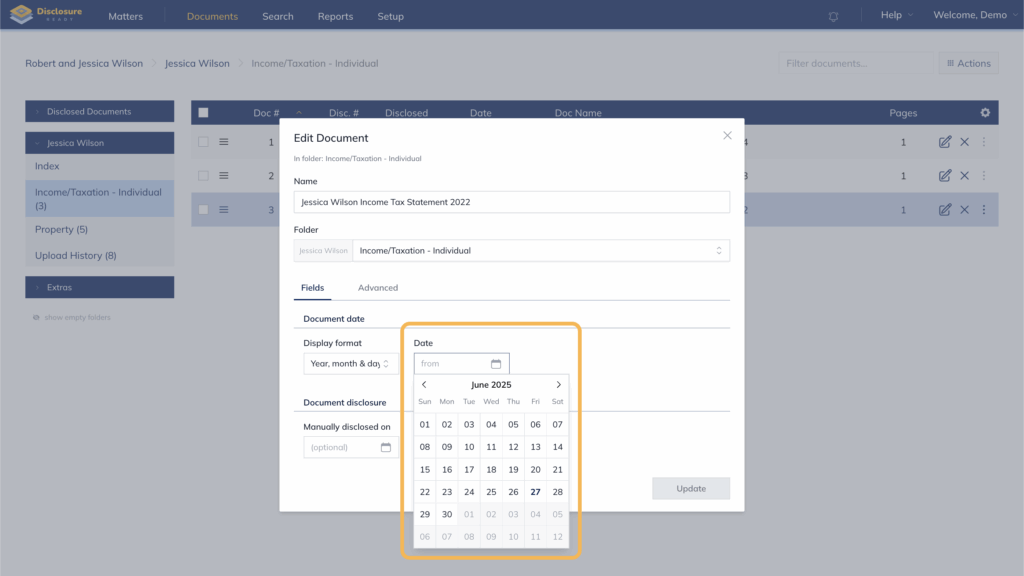
- Click Update
From the document viewer #
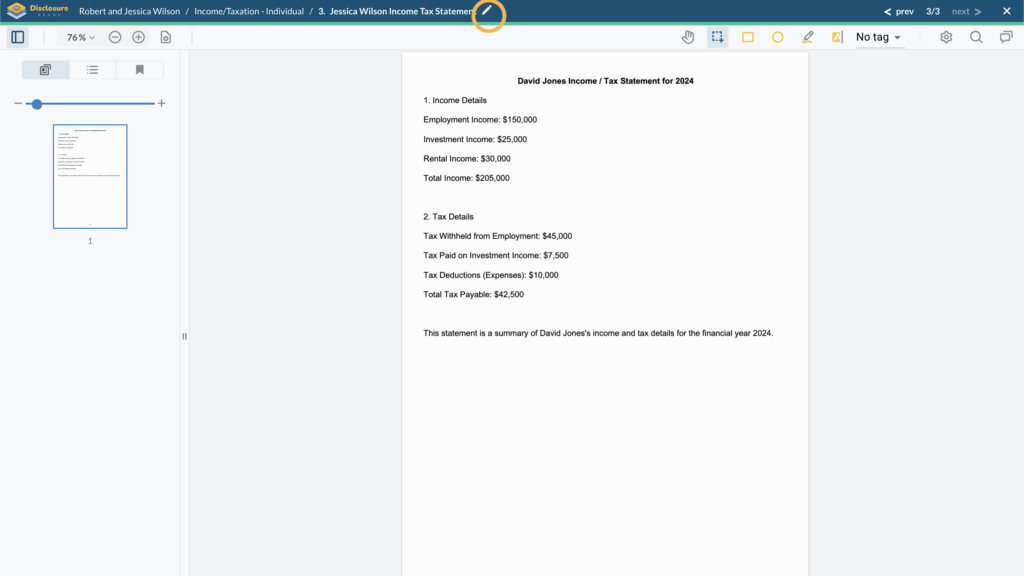
- Go to your matter and click on the document you want to update
- Click the pencil icon in the top bar, on the right-hand side of the document name
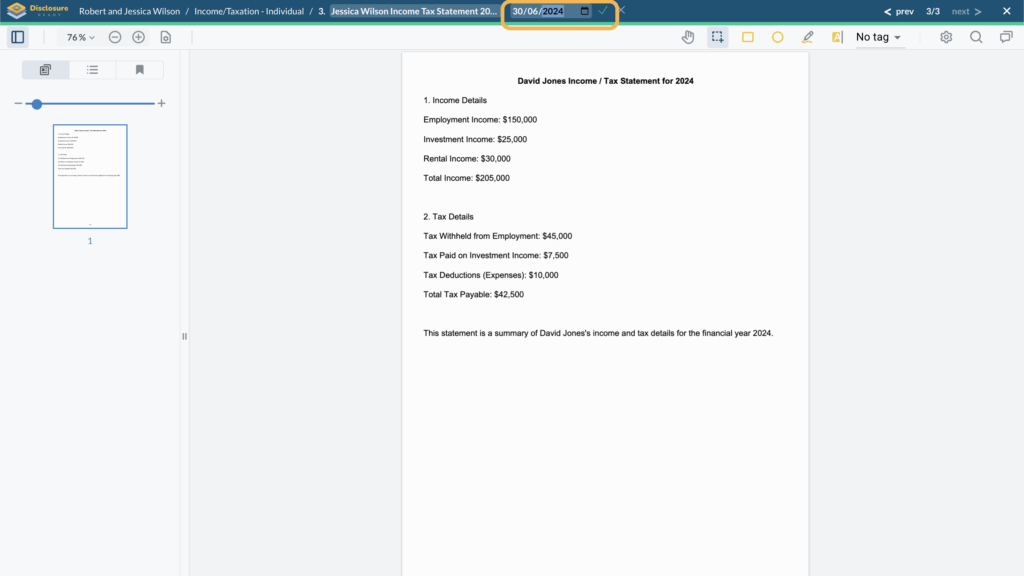
- Click the green tick to save
For further information or assistance, please do not hesitate to reach out to our dedicated Support Team via support@legalready.ai or +61 3 9020 4456.